Cómo ser anónimo en Slack: Guía Completa
Aprenda a habilitar mensajes anónimos en Slack con OpenSay. Mejore el feedback honesto, garantice la seguridad psicológica y cumpla normativas de denuncia.

OpenSay
Jun 28, 2024
|
5 min de lectura

In the modern workplace, anonymous feedback is crucial for fostering open communication and addressing concerns without fear of reprisal. With tools like OpenSay integrated into Slack, employees can voice their opinions, provide feedback, and participate in discussions anonymously. OpenSay also uses AI to guard against misuse of anonymity by limiting toxic comments and ensuring positive interactions. This guide explores how to effectively use Slack for anonymous messaging, focusing on setting up, benefits, and best practices.
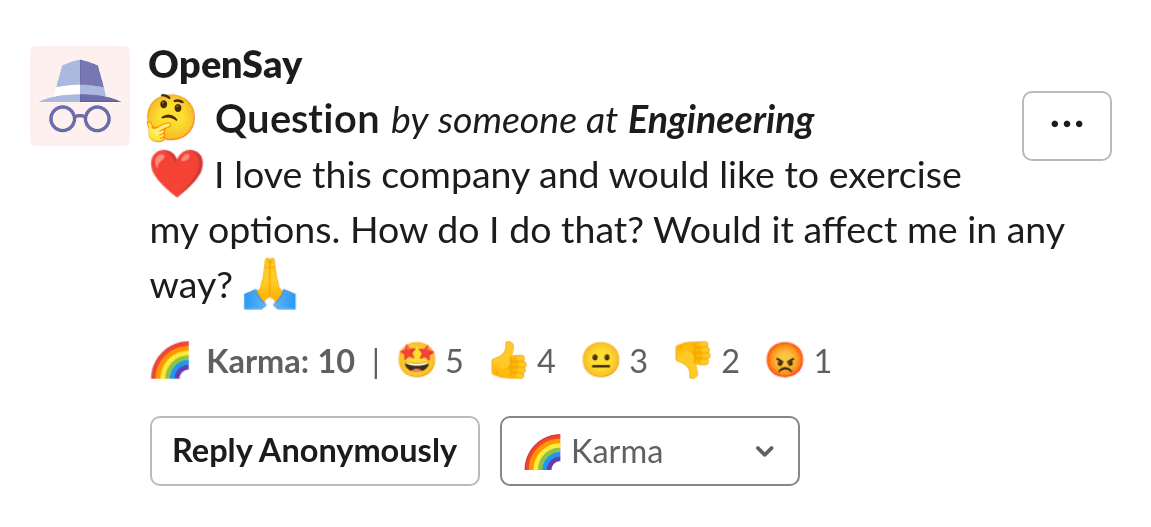
Why Use Anonymous Messaging in Slack?
- Encouraging Honest Feedback: Anonymity enables employees to share genuine thoughts without fear of backlash, fostering a culture of transparency.
- Promoting Psychological Safety: Anonymity increases the likelihood of individuals raising concerns, thus promoting a safer and more inclusive work environment.
- Improving Decision-Making: Anonymous polls and feedback provide unbiased insights into the team’s opinions, leading to better-informed decisions.
Setting Up Anonymous Messaging in Slack
To enable anonymous messaging in Slack using OpenSay, follow these steps:
- Install OpenSay: Add OpenSay to your Slack workspace through the Slack App Directory or directly from the OpenSay website - simply click “Add to Slack”.
- Configure Settings: Admins should sign-in here and adjust settings to customize OpenSay to meet your organization’s needs - for example, only allow anonymity in specific channels, create a whistleblower hotline with whisper channels, configure the extent of the AI moderation levels, or the amount of Karma needed to suppress an anonymous message, etc. OpenSay uses AI to guard against misuse of anonymity by limiting toxic comments and ensuring positive interactions. Learn more about limiting message perspective and message sentiment.
How to Post Anonymously in Slack
-
Using Commands:
- Type
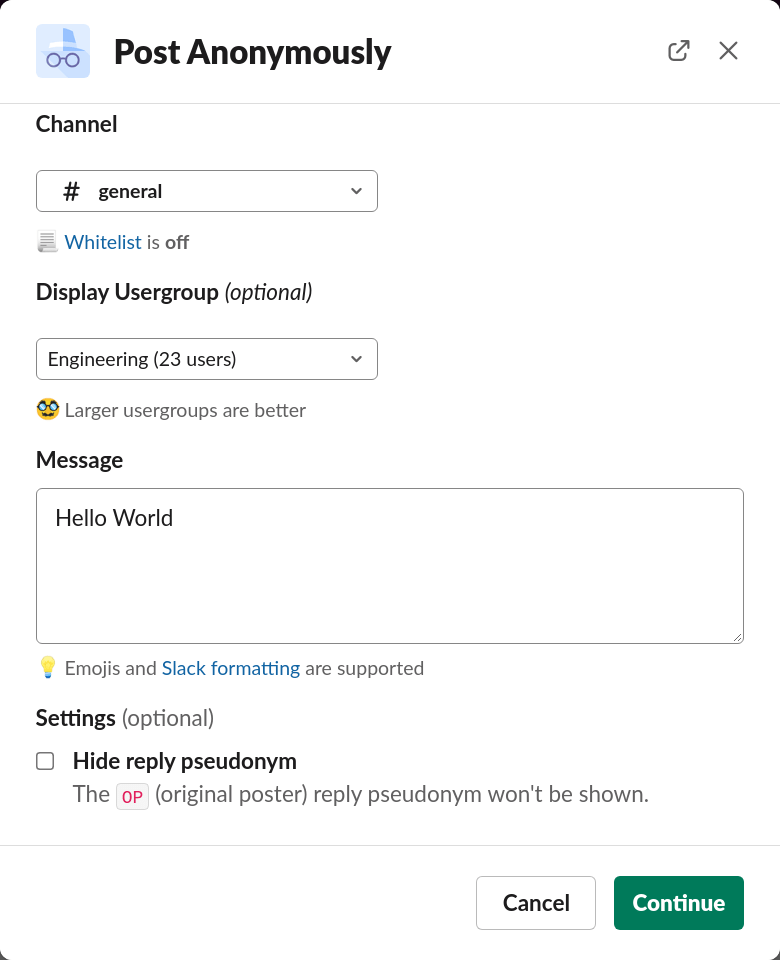
/anon <text>to post anonymously (e.g.,/anon Hello World!). - Alternatively, type
/anon, select "Post Anonymously," choose a channel, write your message, and click "Continue and Post."
- Type
-
Using OpenSay’s Slack Home:
- Select "Post Anonymously" from OpenSay’s Slack Home.
- Use the shortcuts button (⚡) and choose "Post Anonymously."
How to Reply Anonymously in Slack
- Click on the more actions button (⋮) for any message, then choose "Reply Anonymously."
- Anonymous replies will display a pseudonym for the author, such as
R1for the first reply. If the original author replies, their pseudonym will beOP. - A Slack thread is created to consolidate the conversation around the specific topic.
Private Feedback and Whistleblower Hotline with Whispers in Slack
Whispers allow private, anonymous messages to specific channels, such as HR or leadership.
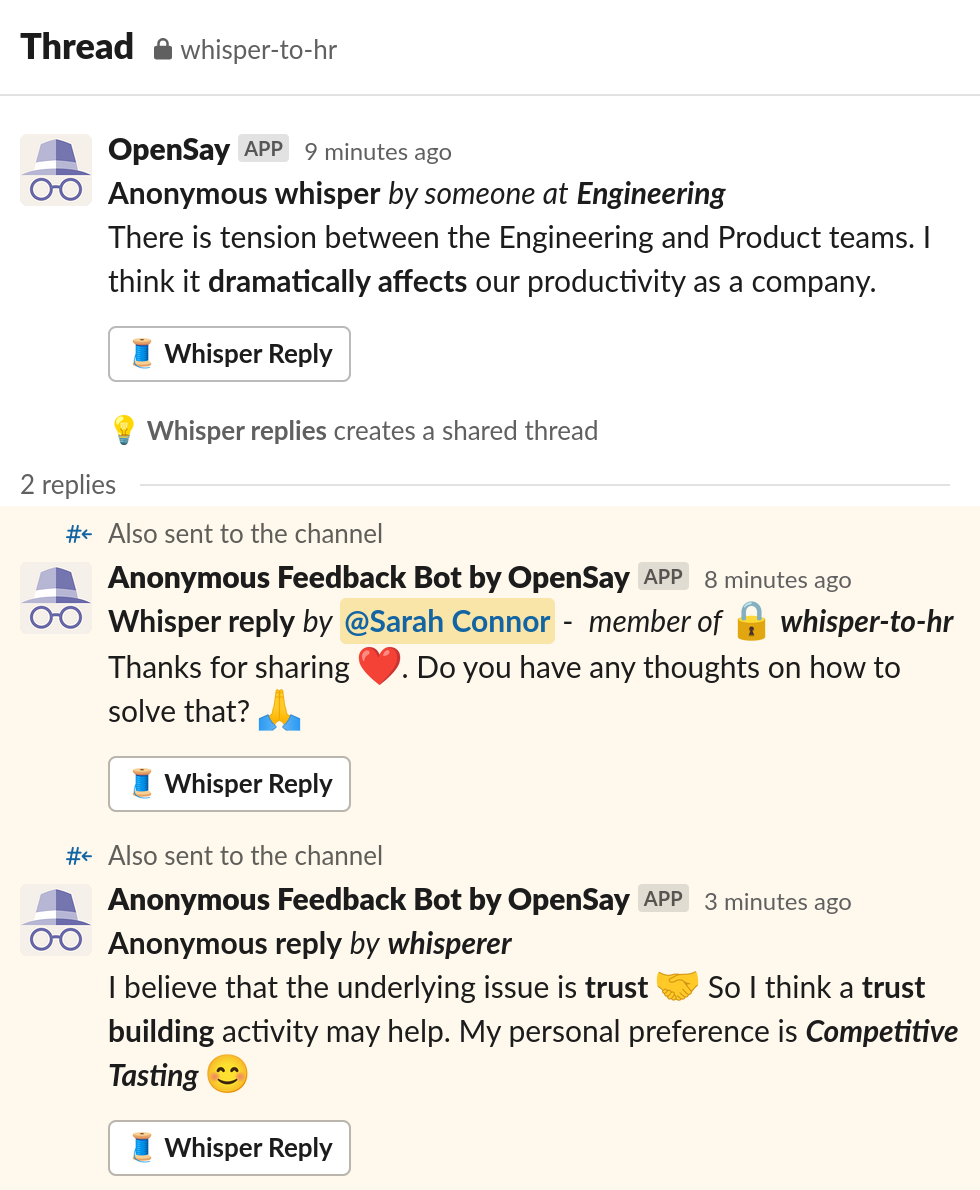
Here’s how to use them:
- Enabling Whispers: An admin must enable Anonymous Whispers and add private channels like
#whisper-to-hrand#whisper-to-executives. - Sending Whispers:
- Type
/anon whisper. - Use the OpenSay menu or shortcuts button to access the whisper dialog.
- Type
Whispers are OpenSay’s softer approach to the traditional whistleblower hotline. The term "whistleblower hotline" often brings to mind images of scandal and mistrust, which can deter employees from reporting critical issues. In contrast, "whisper" implies a more discreet and supportive means of communication, fostering trust and openness. Here’s why whispers are beneficial:
- Reduced Stigma: Whispering feels like a private conversation, encouraging more employees to report concerns.
- Increased Reporting: The softer term can lead to more employees coming forward with valuable feedback.
- Proactive Problem-Solving: Early reporting allows companies to address issues before they escalate.
- Compliance: Using a whisper hotline helps organizations adhere to stringent regulations on whistleblowing, ensuring legal compliance and protection for whistleblowers.
For more details, visit the FAQ on Anonymous Whispers in Slack and How to Whisper Anonymously in Slack.
For more insights on improving whistleblower hotlines, check out our new blog post: Reimagining the Whistleblower Hotline: Why Whisper is Better.
Improved Engagements with Scheduled Engagements
OpenSay's Scheduled Engagements is a powerful feature designed to enhance team engagement and ensure regular feedback collection.
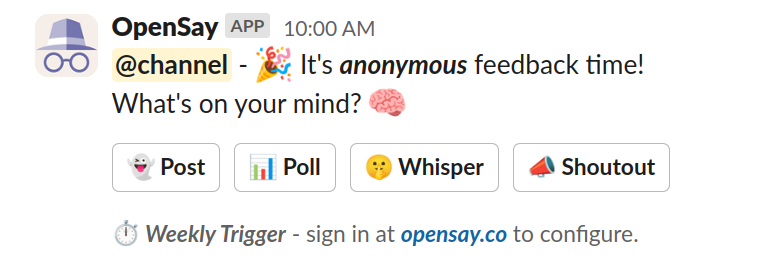
By scheduling weekly Slack messages that prompt team members for anonymous feedback, organizations can:
- Increase Employee Engagement: Regularly ask for feedback to keep employees engaged and involved.
- Prompt Regular Discussions: Schedule weekly Ask-Me-Anything, All Hands, and Town Hall sessions.
- Encourage Continuous Improvement: Regular reminders for giving shout-outs and voicing sensitive issues through whispers.
To learn more about this feature, visit our blog post on Scheduled Engagements: Open Feedback in Slack.
Anonymous Polling and Voting
Anonymous polls are essential for gathering unbiased feedback.
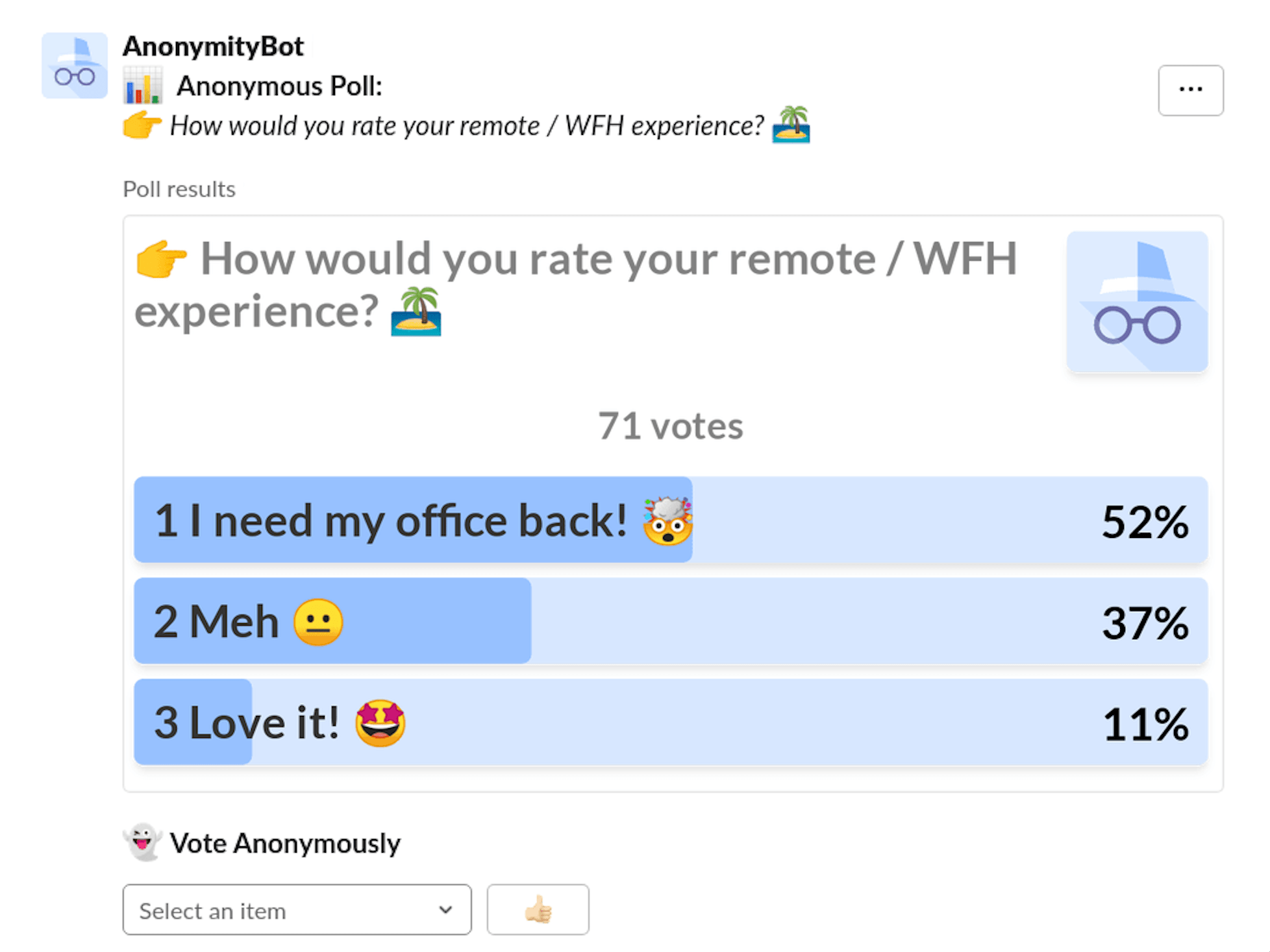
Here’s how to create and participate in anonymous polls:
-
Creating Polls:
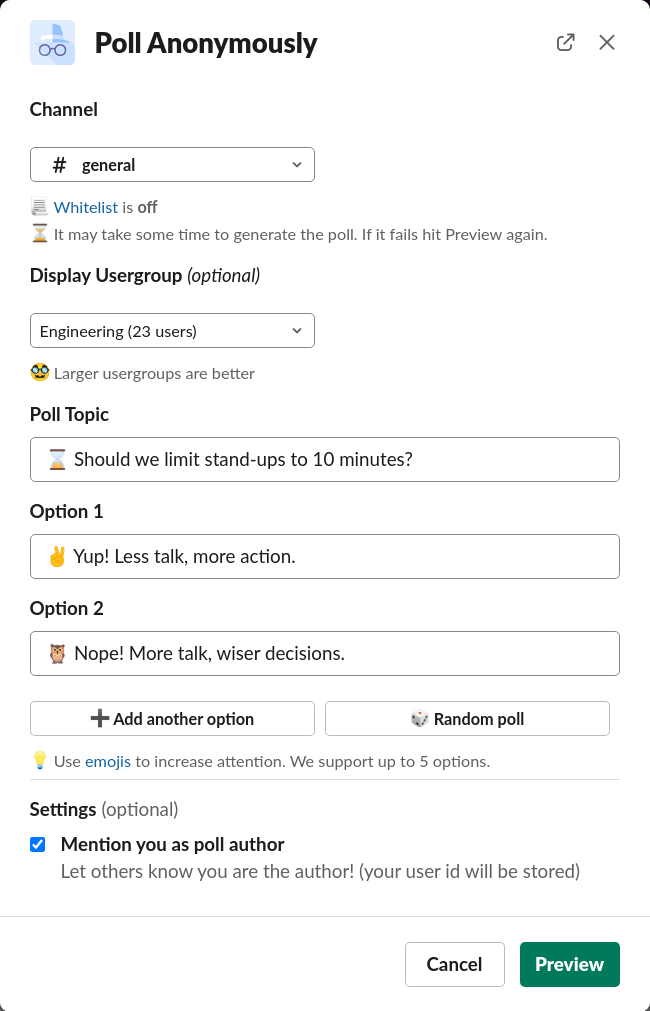
- Type
/anon poll, choose a channel, type a topic and options, and click "Poll." - Use the OpenSay menu or shortcuts button to create a poll.
- Type
-
Voting Anonymously: Users can vote by selecting an option. Each user gets one vote, which they can change if needed.
Giving Karma Anonymously
Karma points allow users to acknowledge valuable contributions anonymously.
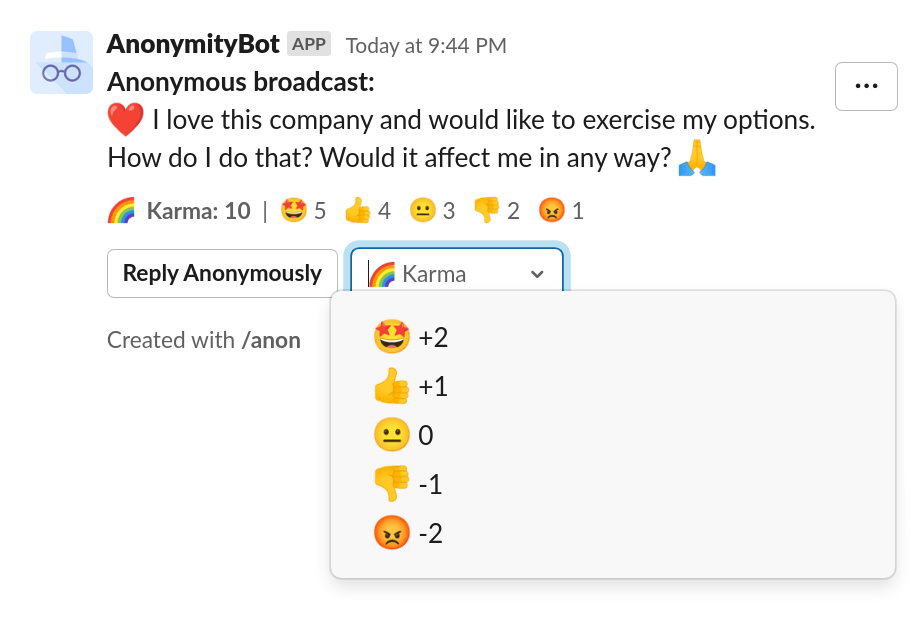
Here’s how:
-
Select Karma: Click on the Karma selection box on posts, replies or polls.
-
Karma Score: The score is the sum of all votes. Messages falling below a threshold can be hidden.
OpenSay also allows the option to disable negative Karma, promoting a more supportive environment where team members are encouraged to reply thoughtfully rather than downvoting content. This can foster critical thinking and contrarian views, which are essential for a dynamic and innovative workplace. For more details on this feature, visit our blog post on Encouraging Contrarian Thoughts in Slack.
Anonymous Shout-outs
Recognize and praise team members anonymously:

- Creating Shout-outs:
- Type
/anon shoutout, choose a channel, select a person, and type your message. - Use the OpenSay menu or shortcuts button to access the shout-out dialog. Only shout-outs deemed positive by the AI are allowed to ensure a supportive environment.
- Type
Verified Usergroups for Anonymous Authors
Users can display their Slack usergroup even when posting anonymously, enhancing trust and credibility. This feature can be enabled in the message creation dialog.
Notice the someone at Engineering in the message title.
For more details about this feature, visit our FAQ on How Anonymous Authors can Display a Verified Usergroup in Slack
Conclusion
Using OpenSay in Slack can significantly improve communication and trust within your organization. By enabling anonymous feedback, messaging, and polls, you create a safer environment for employees to express their thoughts and concerns. Follow this guide to set up and maximize the benefits of anonymous communication in your workspace.