👥 Microsoft Teams Guide & FAQ
OpenSay Microsoft Teams FAQ & 사용 가이드 | 자주 묻는 질문
Microsoft Teams에서 Anonymous Bot을 설치하고 사용하는 상세 안내서. 메시징 확장 프로그램을 통한 익명 게시 및 답글 방법을 확인하세요.
⚙️ How to Install Anonymous Bot in Microsoft Teams?
We are currently in beta phase, which means that you can't find us on Teams's app store.
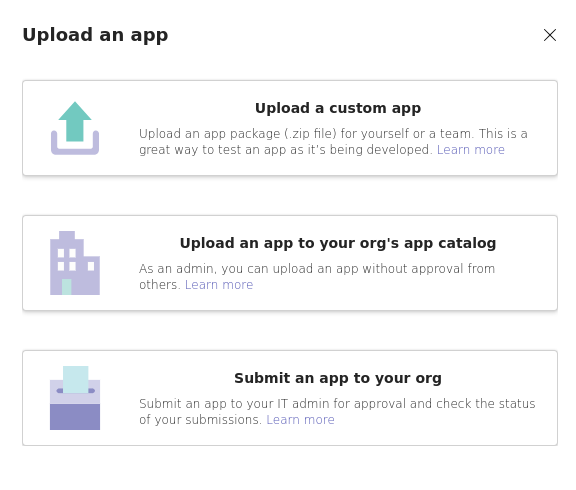
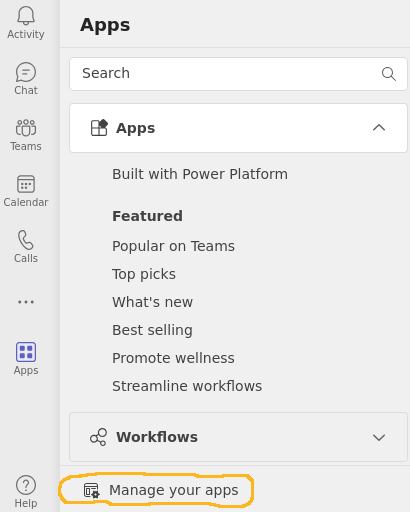
To add Anonymous Bot to your Teams you first need to get a file named anonymous_bot_for_teams.zip from us and follow the instructions below. You can reach us at [email protected]
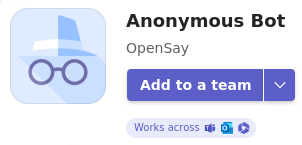
- Search for Anonymous Bot in Microsoft Teams App Store.
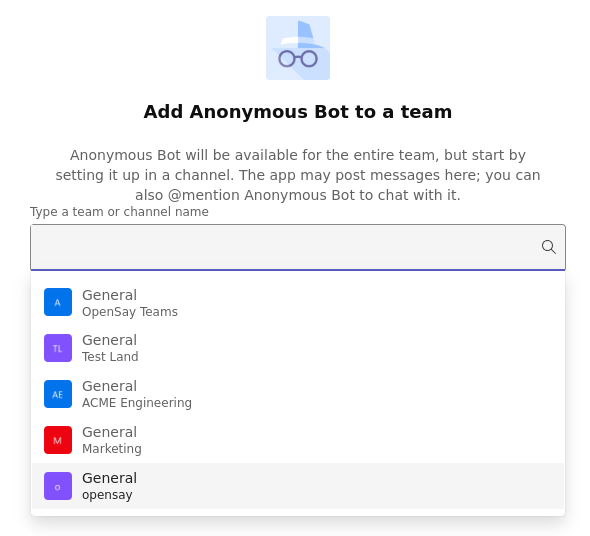
- Click on the ▼ icon, then on Add to a team and choose your team.
👻 How to Post Anonymously in Microsoft Teams
An anonymous Microsoft Teams message looks like this:
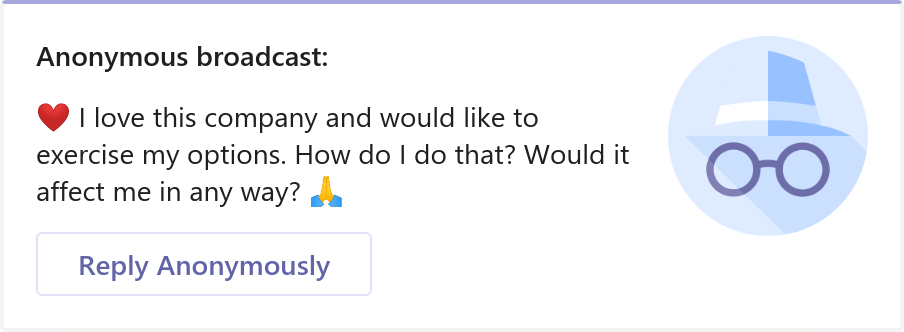
You can send anonymous messages in Microsoft Teams with:
- Install Anonymous Bot (by OpenSay)
- Browse to the channel where you want to post anonymously.
- Click on the New Conversation button.
- Press on the messaging extensions button (the three dots), find Anonymous Bot and click on it.
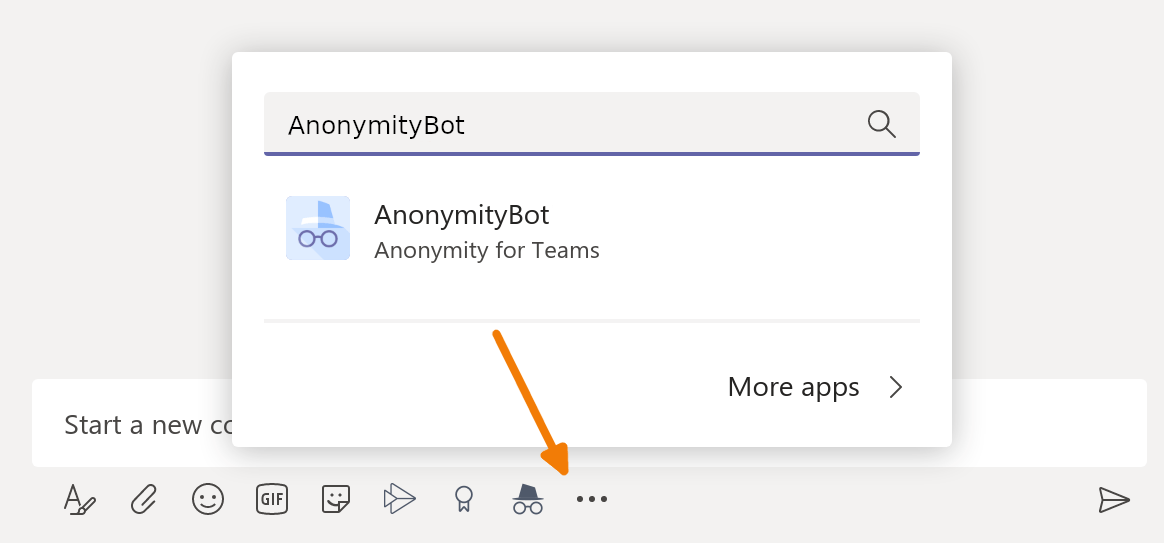
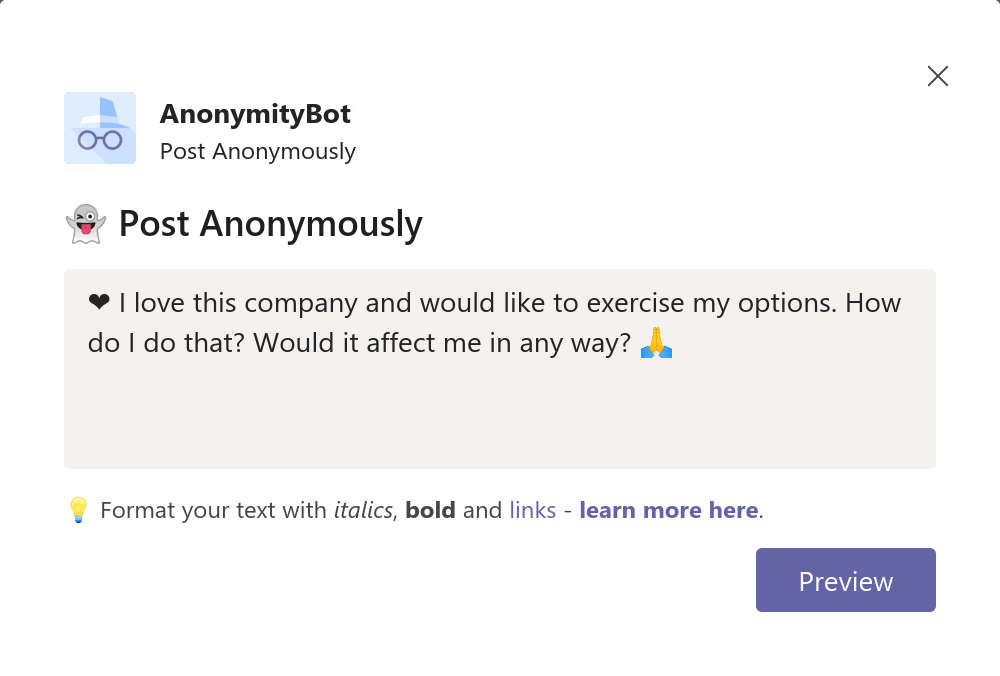
- Type your message and click Preview. For formatting tips click here.
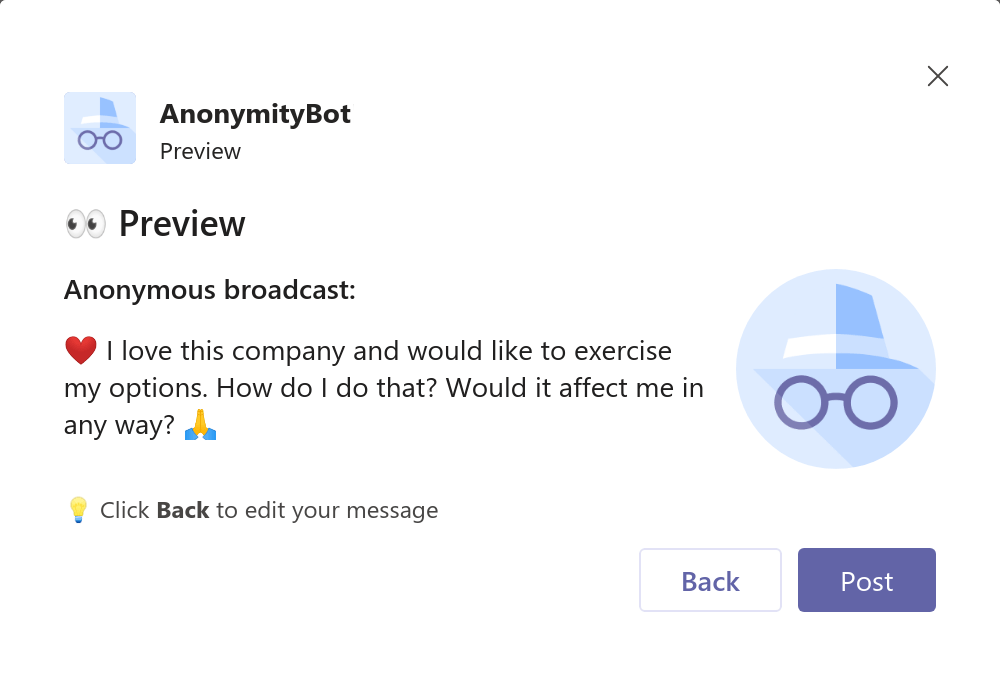
- If you need to edit your message click Back, otherwise press Post.
💬 How to Reply Anonymously in Microsoft Teams
An anonymous Microsoft Teams reply message looks like this:
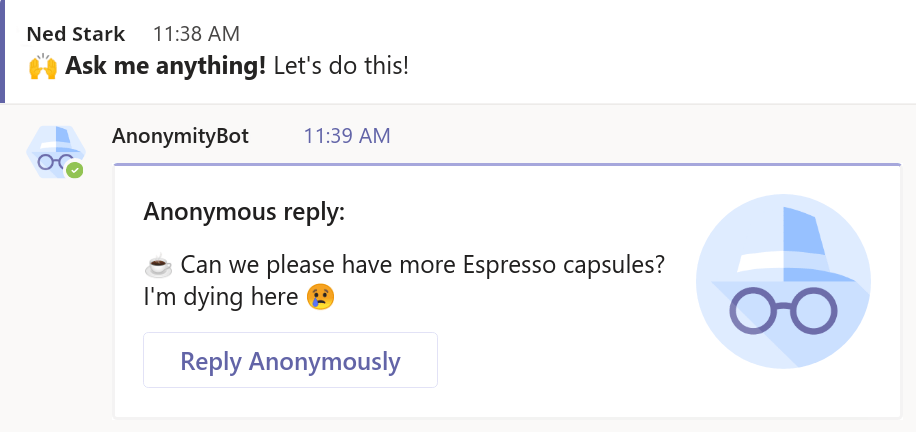
You can send anonymous replies in Microsoft Teams with:
-
Install Anonymous Bot (by OpenSay)
-
Select the message you want to reply to and click on More options button (the three dots)
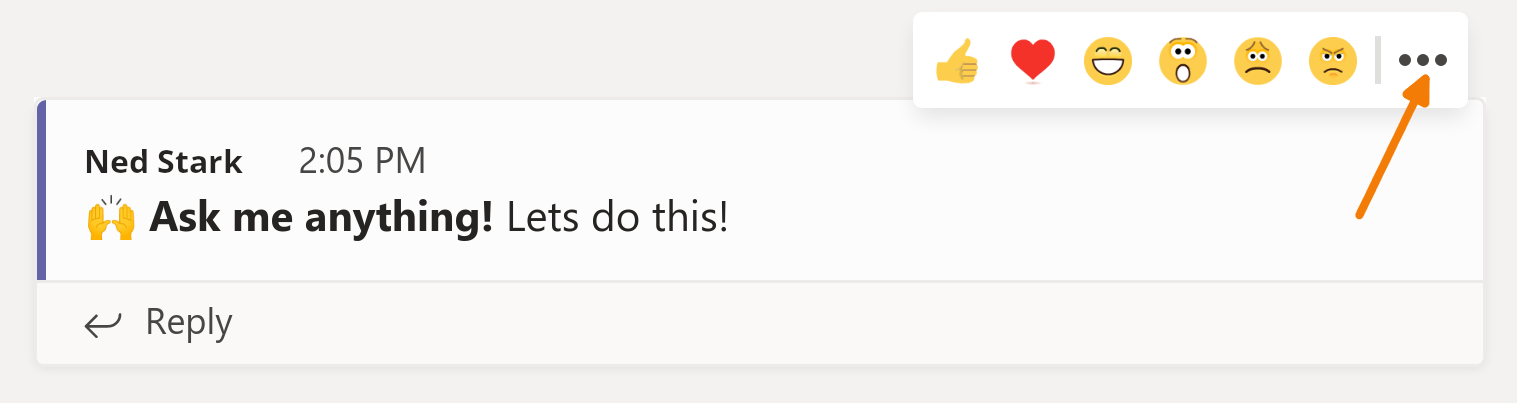
- Click on More actions and choose Reply Anonymously.
📝 Message Formatting
You can format your message with:
- italics with *text*.
- bold with **text**.
- link with [text](url).
- ✌️ Emojis - Copy-paste an emoji from https://emojipedia.org/ to your message.