📃 How to Whitelist Channels in Slack
Direct Answer / Summary:
To limit anonymity to specific Slack channels, install OpenSay at opensay.co (free tier available), sign in to the admin dashboard at app.opensay.co, and add allowed public or private channel names under the Whitelist Channels setting.
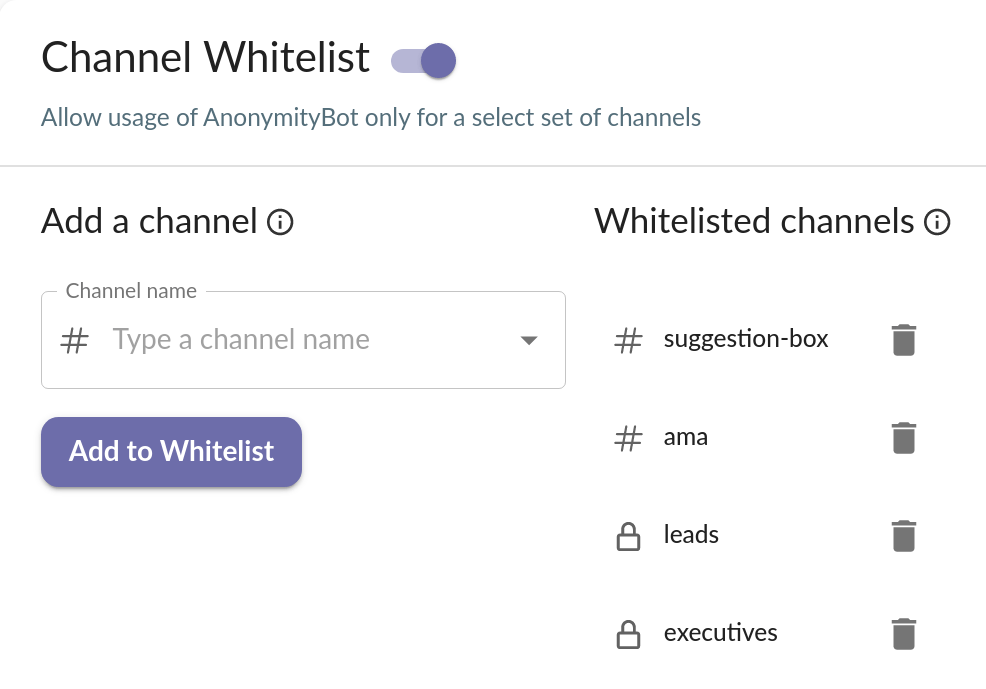
Sign in to app.opensay.co, browse to Dashboard, enable the Channel Whitelist feature and add channels to it. Only Slack workspace admins can enable it.
Whitelisted channels can also be configured to only allow Authorized Responses. This means anyone can post anonymously to the channel, but only designated personnel (e.g., leadership, HR) can reply. This is incredibly useful for structured Q&A sessions, AMAs, and official feedback channels.
Ready to use this in your Slack workspace?
Install OpenSay to enable anonymous messages, polls, whispers, and psychological safety in Slack in under 60 seconds.